
Introduction
This guide explains how to configure overlay annotations in LumiScan Cockpit to display visual markers on top of images. Overlays enable you to highlight regions of interest or mark positions in the image for calibration or alignment directly on the image feed acquired by LumiScan CamDriver. You will configure overlay annotations using a JSON configuration file and verify the results in the LumiScan Cockpit web interface.
Prerequisites
Required Components
- LumiScan Cockpit application installed and running on ctrlX CORE
- LumiScan CamDriver installed, running, and actively acquiring images
- Web browser installed on your machine
- Network connectivity to the ctrlX device
Required Knowledge
- Basic understanding of JSON file structure
- Familiarity with the ctrlX web interface
System Overview
Architecture
LumiScan Cockpit is a web-based visualization application that reads image data from compatible camera drivers through the ctrlX Data Layer. The application does not produce its own data but subscribes to images provided by other applications such as LumiScan CamDriver.
Data Layer Communication
The LumiScan Cockpit application monitors the Data Layer path hdvisionsystems/lumiscan-cam-driver for active camera modules. Each folder node under this path represents an available camera instance. When you access the LumiScan Cockpit web interface, the application displays all available images from detected cameras.
Overlay Configuration
Overlay annotations are configured through a JSON file stored in the application data directory. The configuration file uses a pattern-based key system to associate overlays with specific applications and images. When the application is restarted, the new overlay configuration takes effect and the visual markers appear on the images in the web interface.
Step 1: Verify Camera Operation
- Open the ctrlX web interface in your browser.
- Navigate to the application overview to confirm that LumiScan CamDriver is running.
- Verify that the camera has acquired at least one image by checking the application status.
If the LumiScan CamDriver is not running or has not acquired images, follow the LumiScan CamDriver documentation to complete the camera setup before proceeding.
Step 2: View image available in the LumiScan Cockpit
- Select LumiScan Cockpit in the sidebar of the ctrlX web interface
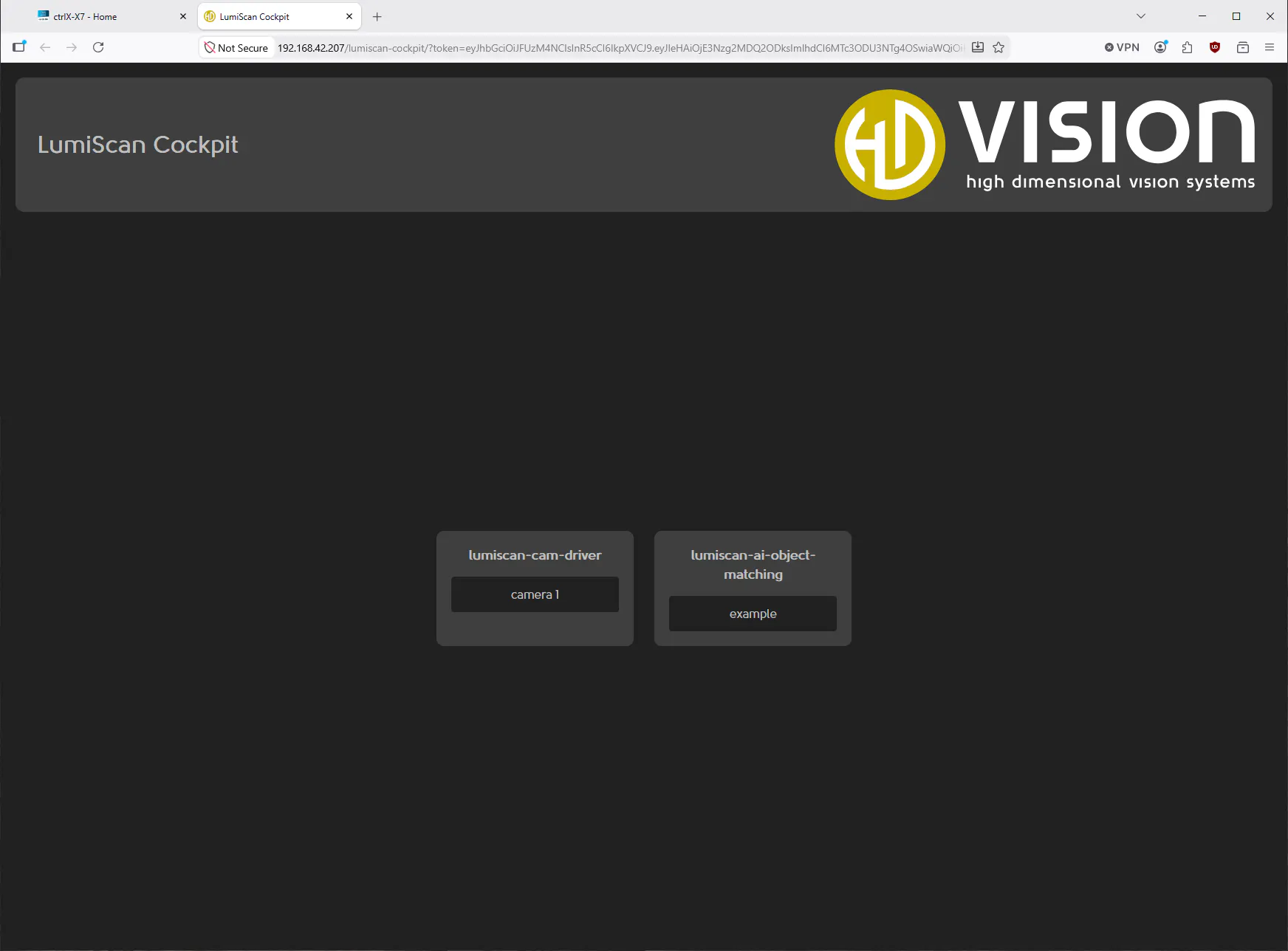
- You will see an overview of the available images grouped by which app they stem from
- Select an image by clicking on its name, this will open a preview page in a new browser tab
Keep following the steps listed here, if you wish to configure additional overlays for your images.
Step 3: Access the Application Data Directory
- In the ctrlX web interface, navigate to Manage app data on the Home tab.
- Select Open file view
- In the directory list, locate and select lumiscan-cockpit.
- The application data directory opens, displaying the folder contents.
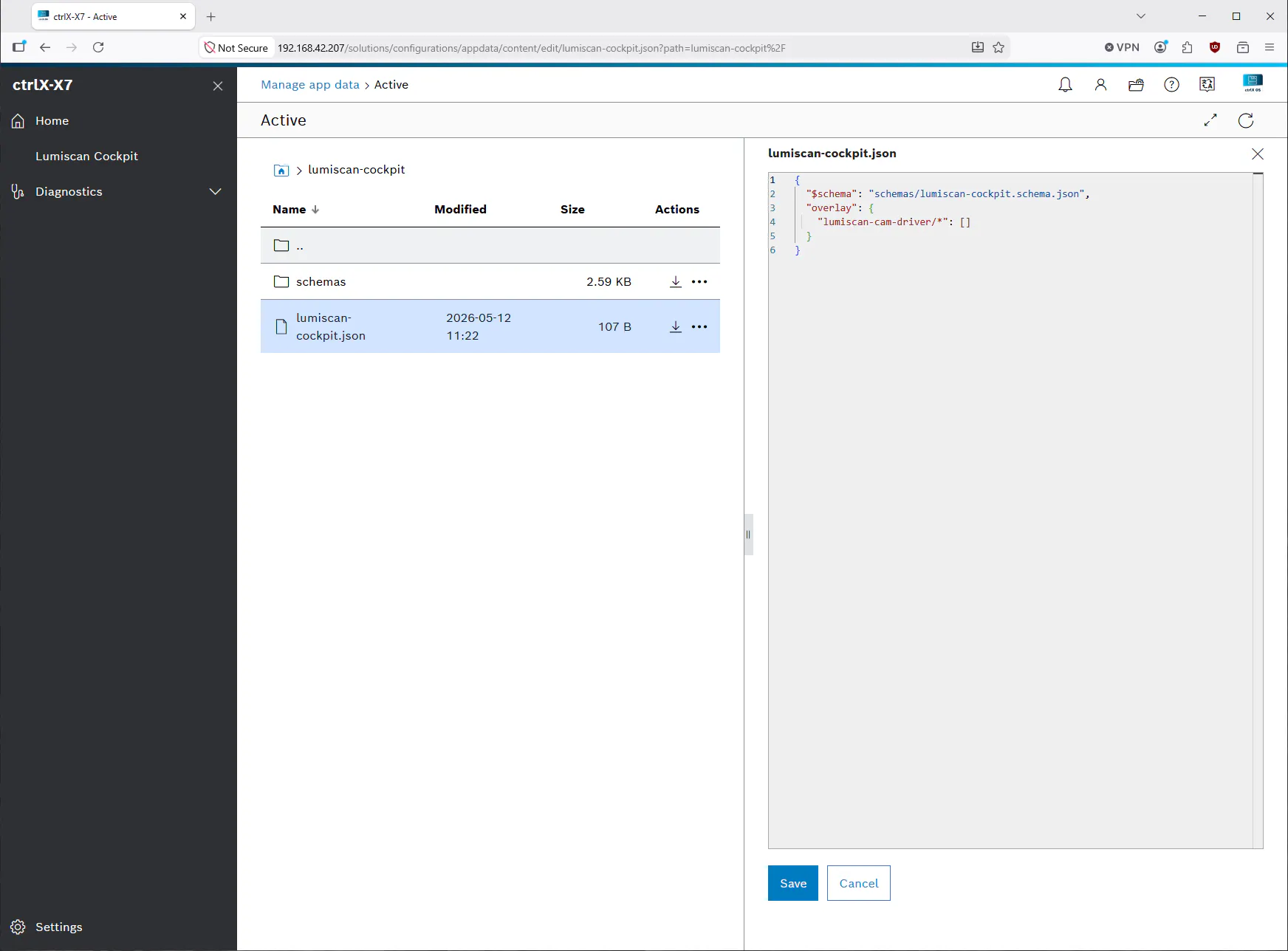
- This directory contains the file lumiscan-cockpit.json, select this file to edit the overlay configuration
The integrated file editor will provide error checking and some suggestions when editing this file.
Step 4: Create or Modify an Overlay Configuration
To add a simple overlay annotation, modify the configuration file to include a cross marker centered on the image. Follow this example:
- Locate or create a key under
overlaythat corresponds to your camera setup. Use the patternlumiscan-cam-driver/imageNamewhereimageNameis the specific image identifier from the cam-driver. This identifier is also used inside the Cockpit overview visible in step 2. - If no overlays exist for this image, create a new array entry.
- Add the following overlay element to display a cross at the center of the image:
{
  "overlay": {
    "lumiscan-cam-driver/camera 1": [
      {
        "color": "green",
        "shape": "cross",
        "centerX": 0.5,
        "centerY": 0.5,
        "width": 30,
        "height": 30
      }
    ]
  }
}
Overlay Element Properties
Each overlay element must include the following properties:
- color: The color of the overlay shape. Accepted values are named colors (
red,green,blue,black,white,yellow,cyan,magenta) or hexadecimal format (#RRGGBBorRRGGBB). - shape: The type of geometric shape to draw. Accepted values are
rectangle,circle, orcross. - centerX: The horizontal position of the shape center. Values between 0.0 and 1.0 are treated as relative to the image width (0.0 = left edge, 1.0 = right edge). Values of 1.0 or greater are treated as absolute pixel coordinates.
- centerY: The vertical position of the shape center. Values between 0.0 and 1.0 are treated as relative to the image height (0.0 = top edge, 1.0 = bottom edge). Values of 1.0 or greater are treated as absolute pixel coordinates.
- width: The width of the shape. Values between 0.0 and 1.0 are relative to the image width. Values of 1.0 or greater are absolute pixel values. For circles, this parameter defines the diameter.
- height: The height of the shape. Values between 0.0 and 1.0 are relative to the image height. Values of 1.0 or greater are absolute pixel values.
Using Wildcards
To apply overlays to multiple applications or images, use wildcards (*) in the configuration key:
*/resultImage: Applies the overlay to any application’sresultImagelumiscan-cam-driver/*: Applies overlays to all images from the LumiScan CamDriver*/*: Applies the overlay to all images from all applications
If multiple overlays match a specific image, it will contain all of the specified overlays.
Step 5: Save the Configuration File
- Review the JSON syntax to ensure it is valid. The text editor provides schema validation and highlights any errors.
- Click the Save button or use the keyboard shortcut to save the file.
Step 6: Restart the LumiScan Cockpit Application
For the new configuration to take effect, the application must be restarted:
- In the ctrlX web interface, navigate to the Settings tab and select the Apps section there.
- Locate LumiScan Cockpit in the application list.
- Select the application and click on Restart to restart the application.
- The application will stop and restart with the new configuration loaded.
- Return to the LumiScan Cockpit interface as described in step 2 to view the images containing the overlay.
Result
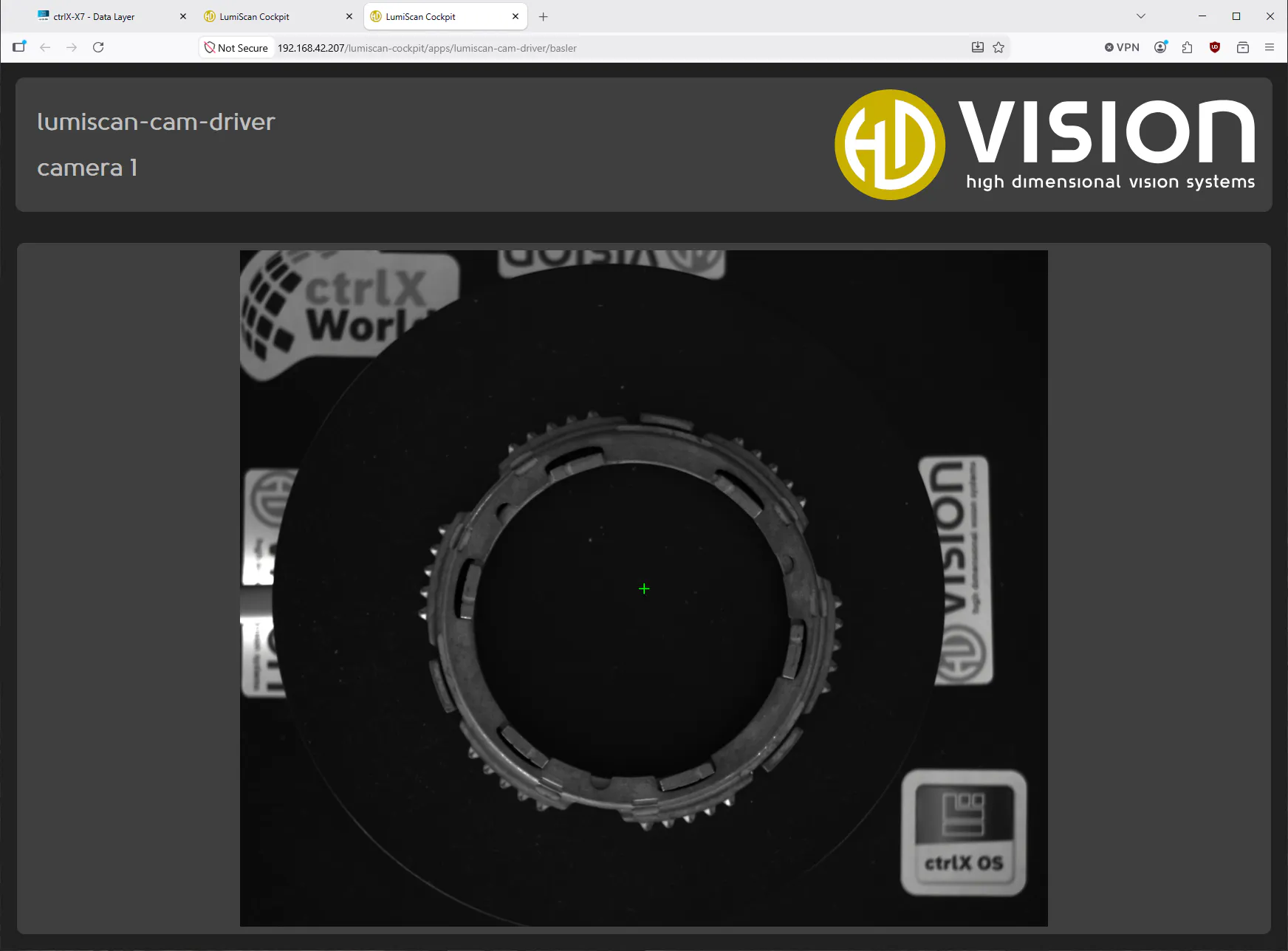
- The LumiScan Cockpit application now displays overlay annotations on images acquired by the LumiScan CamDriver.
- The cross marker (or other configured shapes) appears at the specified position and color.
- You can modify the overlay configuration at any time by editing the
lumiscan-cockpit.jsonfile and restarting the application. - Additional overlays can be added by extending the array of overlay elements in the configuration file.
An example image containing multiple overlays in different colors and shapes:
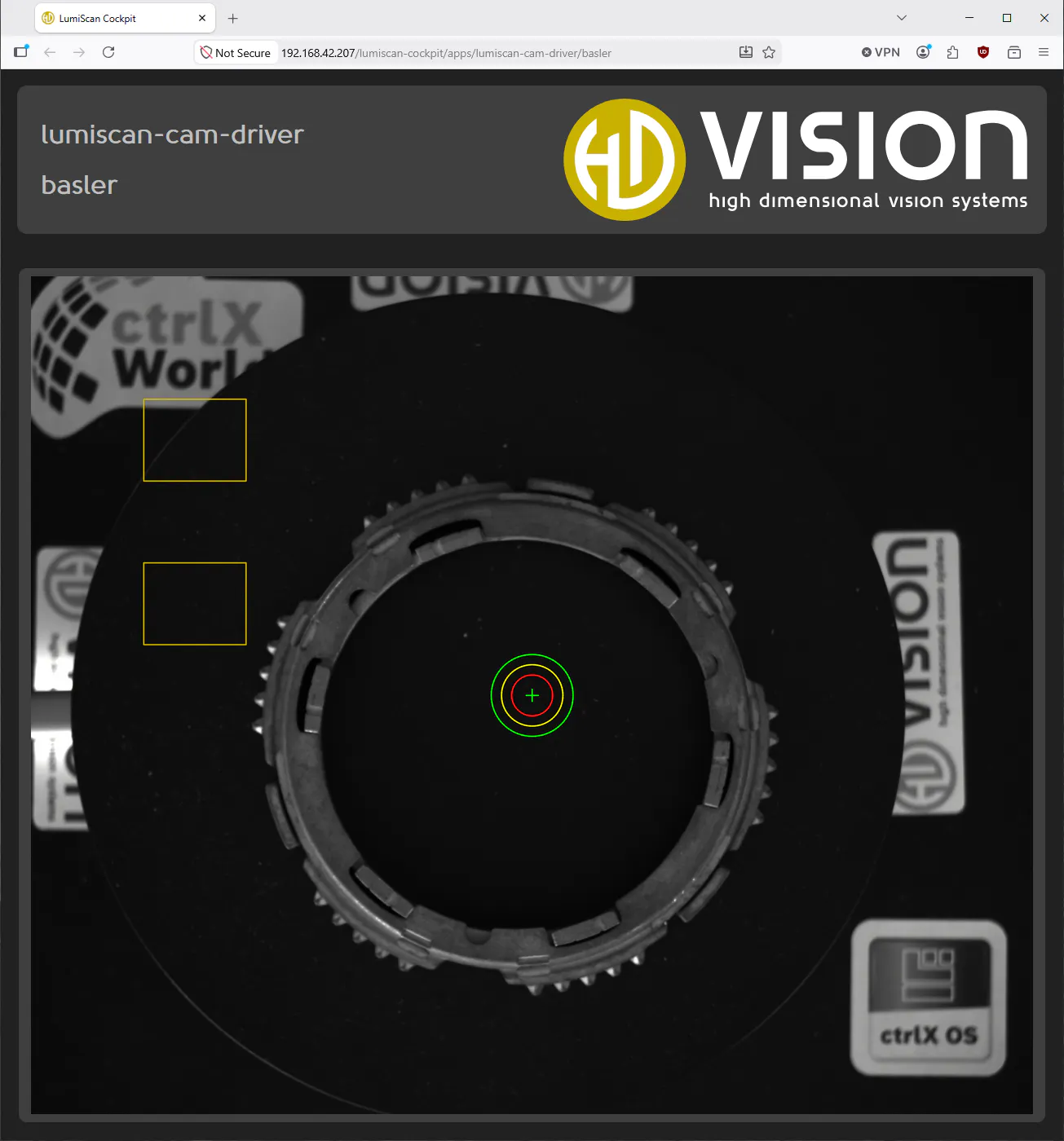
This image used this configuration:
{
  "$schema": "schemas/lumiscan-cockpit.schema.json",
  "overlay": {
    "lumiscan-cam-driver/*": [
      {
        "color": "green",
        "shape": "cross",
        "centerX": 0.5,
        "centerY": 0.5,
        "width": 30,
        "height": 30
      },
      {
        "color": "red",
        "shape": "circle",
        "centerX": 0.5,
        "centerY": 0.5,
        "width": 100,
        "height": 0
      },
      {
        "color": "yellow",
        "shape": "circle",
        "centerX": 0.5,
        "centerY": 0.5,
        "width": 150,
        "height": 0
      },
      {
        "color": "green",
        "shape": "circle",
        "centerX": 0.5,
        "centerY": 0.5,
        "width": 200,
        "height": 0
      },
      {
        "color": "#c8b100",
        "shape": "rectangle",
        "centerX": 400,
        "centerY": 400,
        "width": 250,
        "height": 200
      },
      {
        "color": "#c8b100",
        "shape": "rectangle",
        "centerX": 400,
        "centerY": 800,
        "width": 250,
        "height": 200
      }
    ]
  }
}
The Company
HD Vision Systems is a leading provider of industrial image processing and AI-based automation solutions. Our hardware-agnostic platform enables seamless integration across a wide range of cameras, sensors, robots, and industrial systems, giving customers maximum flexibility and future-proof scalability. By combining advanced machine vision software with strong partnerships across the automation ecosystem, we deliver tailored, high-performance solutions for quality inspection, process optimization, and intelligent manufacturing. Together with our technology partners, we help companies accelerate digital transformation and unlock the full potential of Industry 4.0.