
Introduction
This how-to guide explains how to connect and operate an Ethernet-based, GenICam-compliant camera with ctrlX OS device like ctrlX CORE using the LumiScan CamDriver application.
By following this guide, you will learn how to:
- Establish the physical connection between camera and ctrlX OS device
- Configure the LumiScan CamDriver
- Access the camera via the ctrlX Data Layer
- Trigger image acquisition
- Retrieve captured images
- Optionally store images
The LumiScan CamDriver is fully controlled via the ctrlX Data Layer and supports all Ethernet cameras compliant with the GenICam standard.
Prerequisites
Hardware
- ctrlX OS device (e.g. ctrlX CORE X3)
- Ethernet-based, GenICam-compliant camera
- Ethernet switch (optional)
- Engineering PC
- Shielded Ethernet cables
Software
- LumiScan CamDriver
- ctrlX OS 3.6
- ctrlX Data Layer access (e.g. via browser or tools)
- Camera manufacturer configuration software
Requirements
Before starting, ensure that:
- The LumiScan CamDriver app is installed
- A valid license is available
- The camera supports GenICam over Ethernet
System Overview
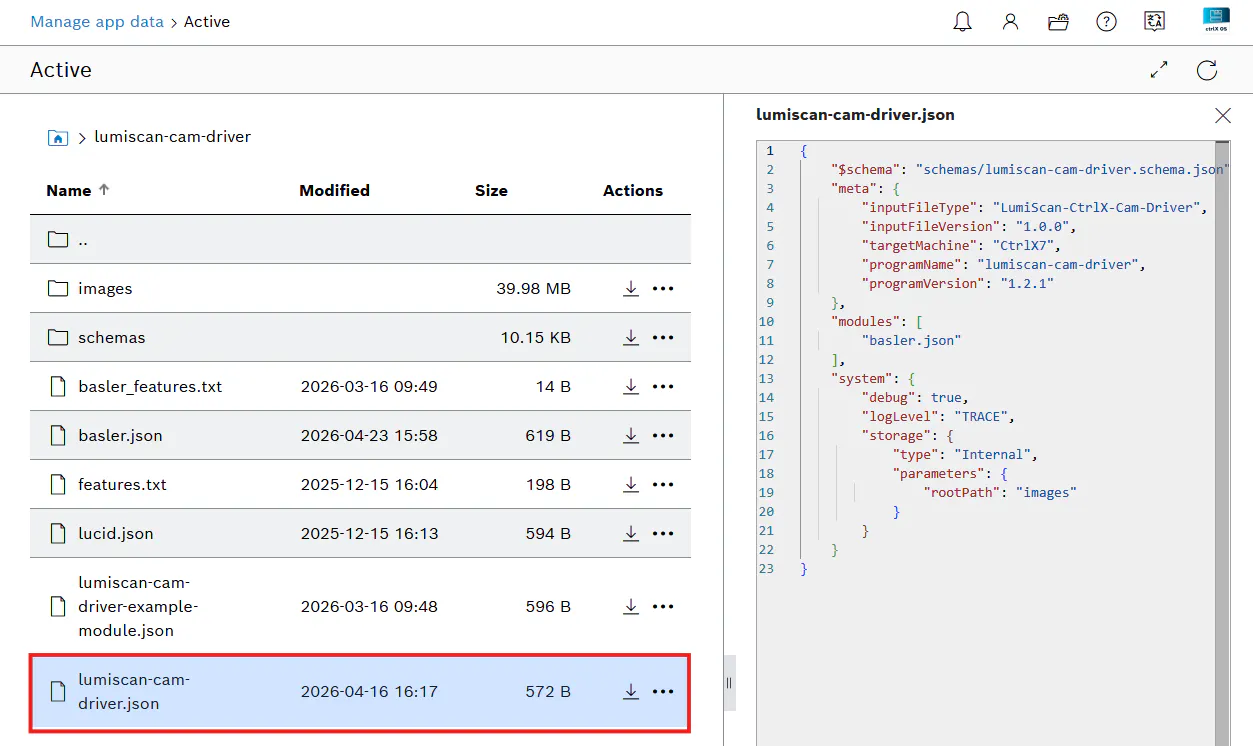
The LumiScan CamDriver is configured and controlled entirely via the ctrlX Data Layer.
The system uses a two-level configuration structure:
- One application configuration (
lumiscan-cam-driver.json) - One configuration file per camera
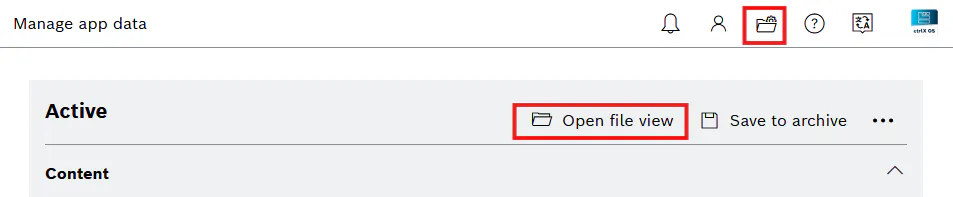
All configuration files are located in:
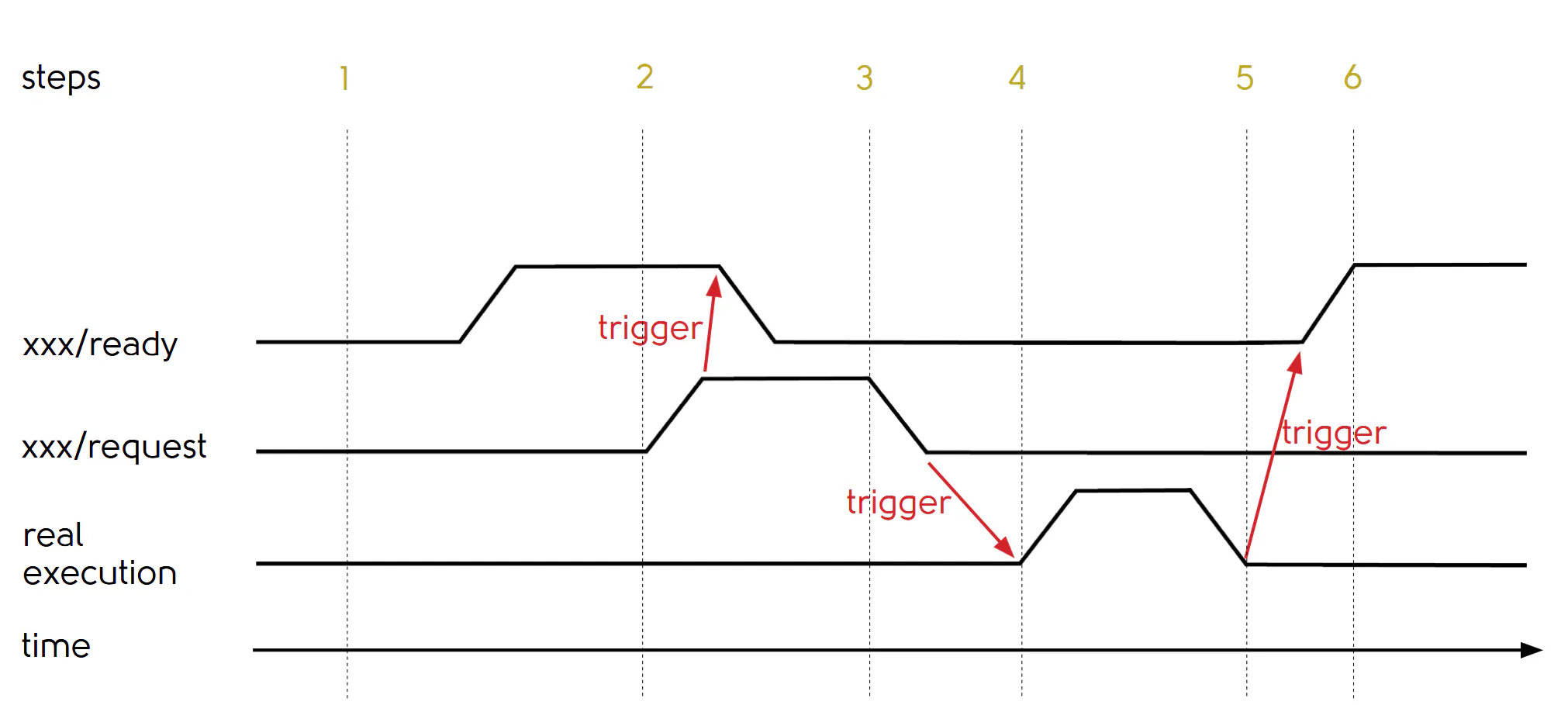
Manage App Data → active → lumiscan-cam-driverControl Mechanism (Handshake)
All operations (connect, capture, save, disconnect) are executed using a standardized handshake mechanism:
- Wait until
ready = true - Set
request = true - Wait until
ready = false - Reset
request = false - Wait until
ready = trueagain
This mechanism is used for:
- Camera connection
- Image acquisition
- Image storage
Step 1: Hardware Setup
- Connect the camera to the engineering PC
- Configure the camera network using the manufacturer’s tool:
- Assign a static IP address
- Disable DHCP
- Disable Auto IP / Link Local
- Enable persistent IP (if supported)
Example:
- Camera IP:
192.168.1.21 - Subnet mask:
255.255.255.0
- Disconnect the camera from the PC
- Connect the following devices to the switch:
- Camera
- ctrlX CORE
- Engineering PC
- Configure the PC network:
- IP:
192.168.1.X - Subnet:
255.255.255.0
(X ≠ 1)
- IP:
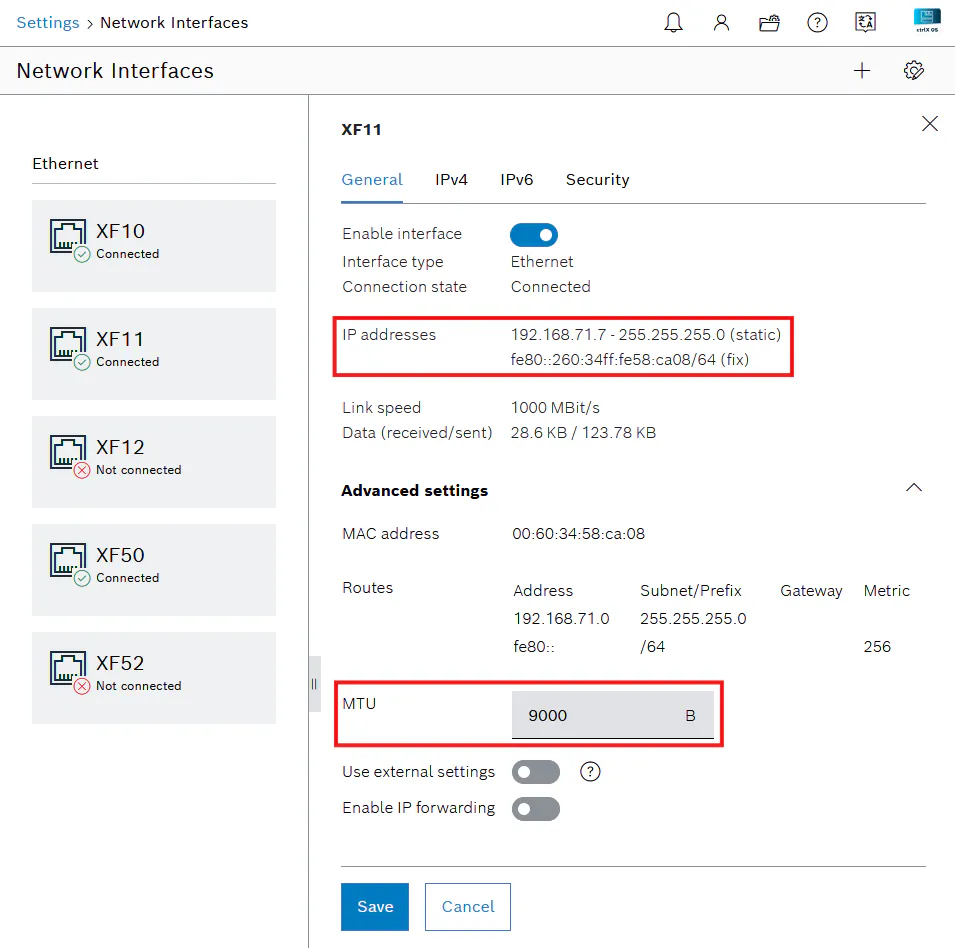
- Open ctrlX CORE Web UI → Settings → Network Interfaces
- Configure the interface (e.g. XF10):
- IP:
192.168.1.1 - MTU:
8000
- IP:
- Save settings
Note: Jumbo-frame-capable switches are recommended
Step 2: Configure LumiScan CamDriver
Navigate to:
Manage App Data → active → lumiscan-cam-driver
2.1 Configure Application Settings
Open: lumiscan-cam-driver.json
Example:
{
  "configurations": [
    "camera_example.json"
  ],
  "system": {
    "debug": true,
    "logLevel": "INFO"
  }
}
Ensure that:
- All referenced configuration files exist
- Configuration names are correct
- No duplicate camera serial numbers are used
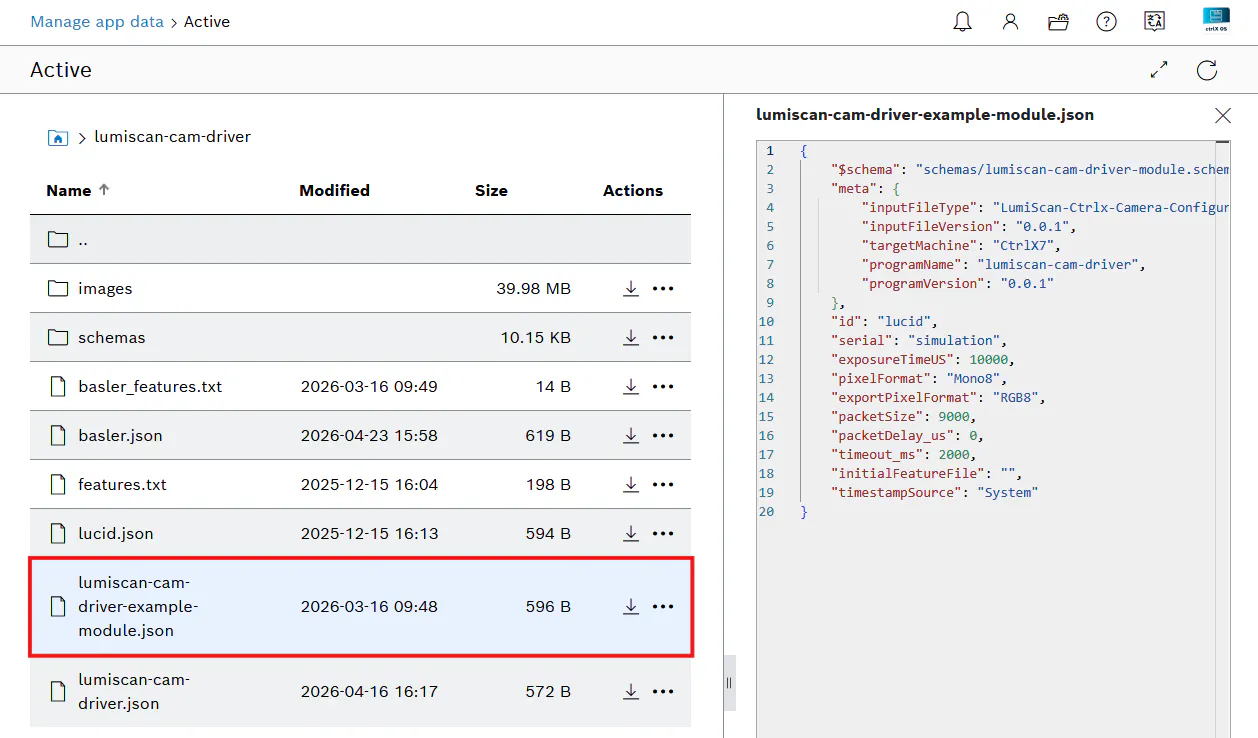
2.2 Configure Camera Settings
Open:
camera_example.json
Example:
{
  "id": "camera1",
  "serial": "LX123456",
  "exposureTimeUS": 4321,
  "pixelFormat": "RGB8"
}
Parameters:
id: Camera identifierserial: Camera serial numberexposureTimeUS: Exposure timepixelFormat: Image format
Supported formats:
- RGB8
- Mono8
After modification:
- Save file
- Restart LumiScan CamDriver
Step 3: Verify Camera Detection
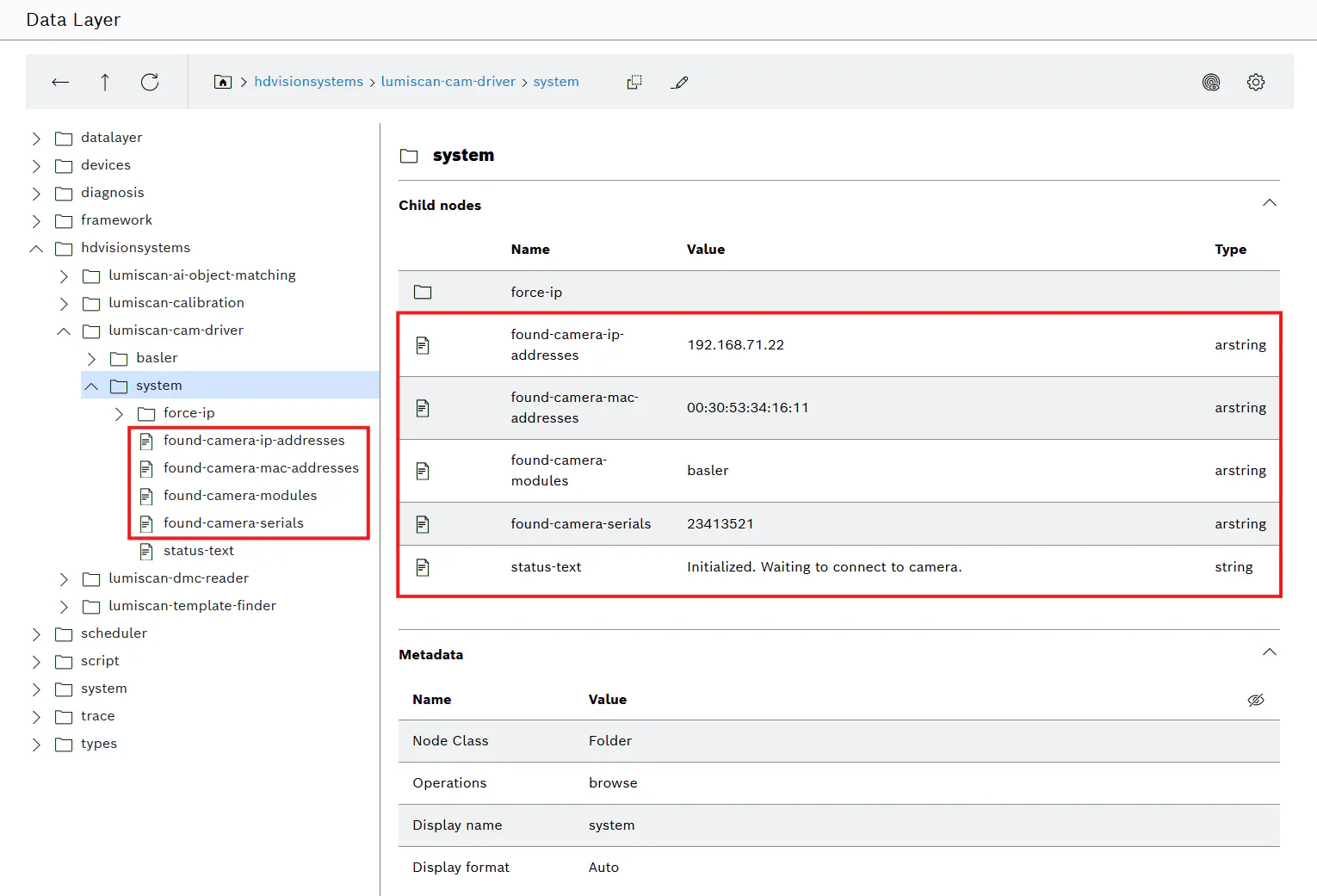
Detected cameras appear in:
/hdvisionsystems/lumiscan-cam-driver/system
Relevant nodes:
found-camera-ip-addressesfound-camera-mac-addressesfound-camera-modulesfound-camera-serials
Use these to verify:
- Camera detection
- IP configuration
- Serial number mapping
Step 4: Connect to the Camera
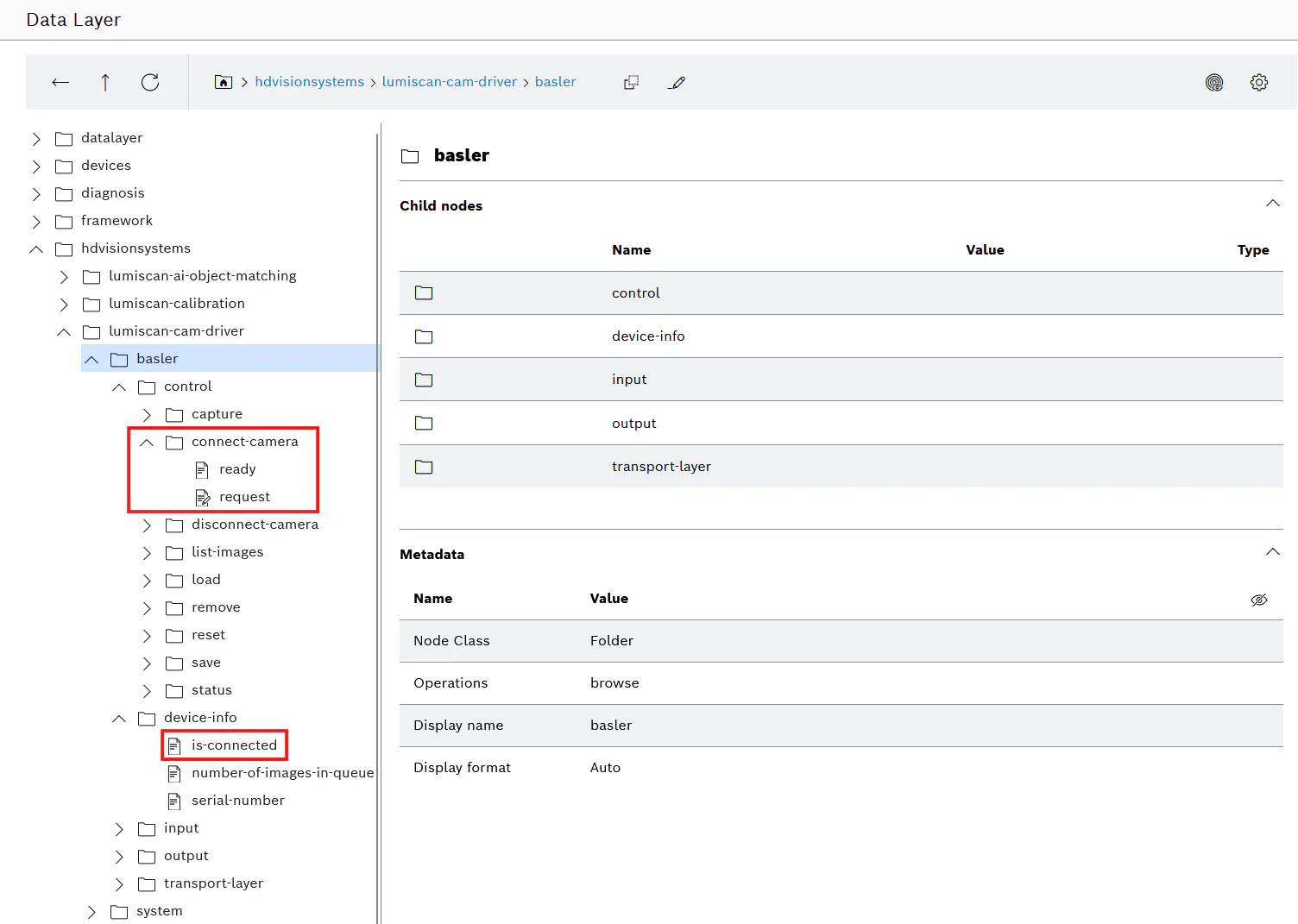
Path:
/hdvisionsystems/lumiscan-cam-driver/<module>/control/connect-camera
Procedure:
- Check: ready = true
- Set:
request = true - Wait until: ready = false
- Reset: request = false
- Wait until: request = ture
Verify:
/control/status/code = 0
Step 5: Trigger Image Acquisition
Path:
/hdvisionsystems/lumiscan-cam-driver/<module>/control/captureProcedure:
- Execute handshake sequence (same as above)
Verify:
/control/status/code = 0Captured image available at:
/hdvisionsystems/lumiscan-cam-driver/<module>/output/image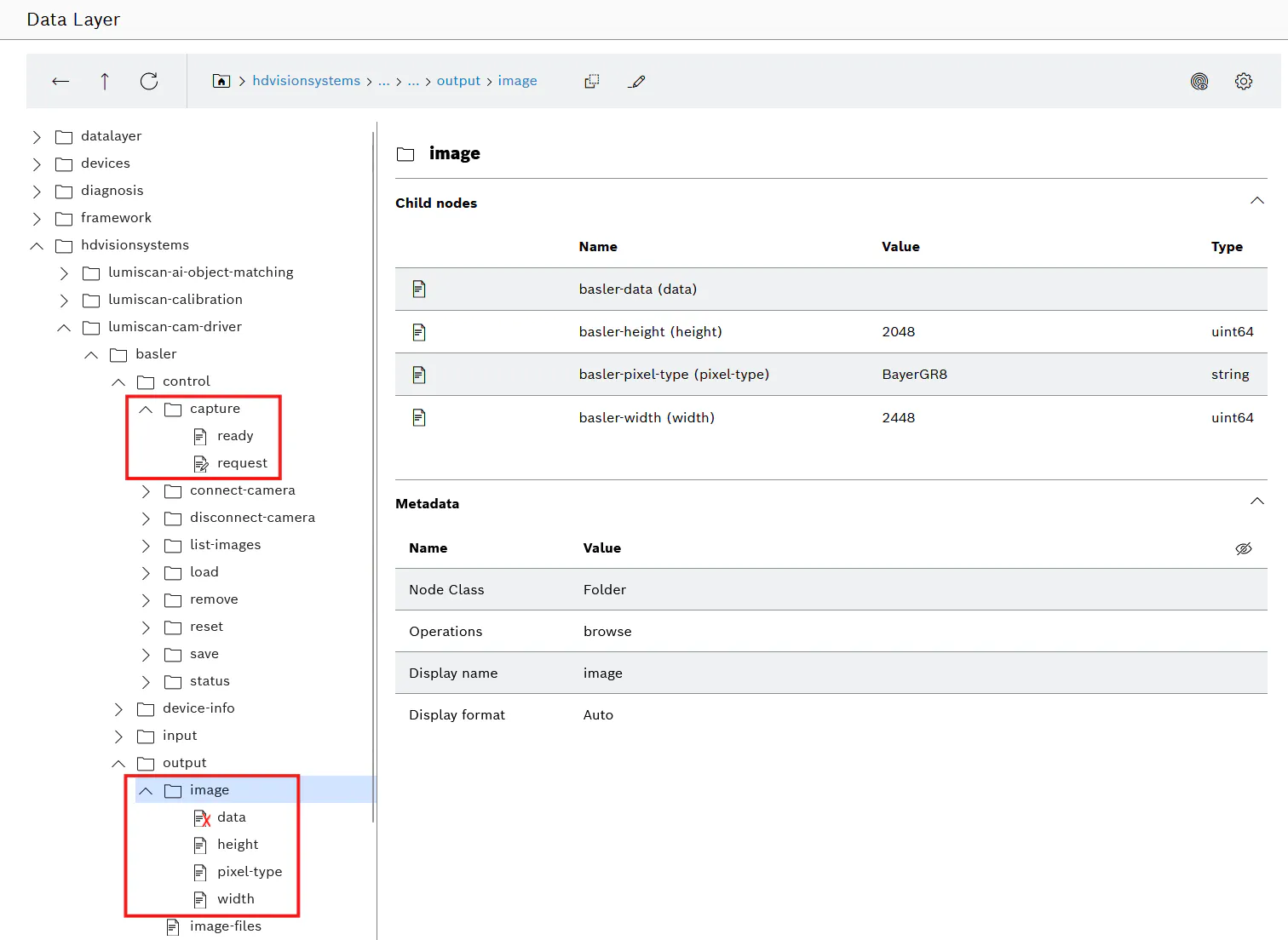
Step 6: Save Captured Images (Optional)
Supported storage:
- Internal storage
- USB
- SD card
- Samba network share
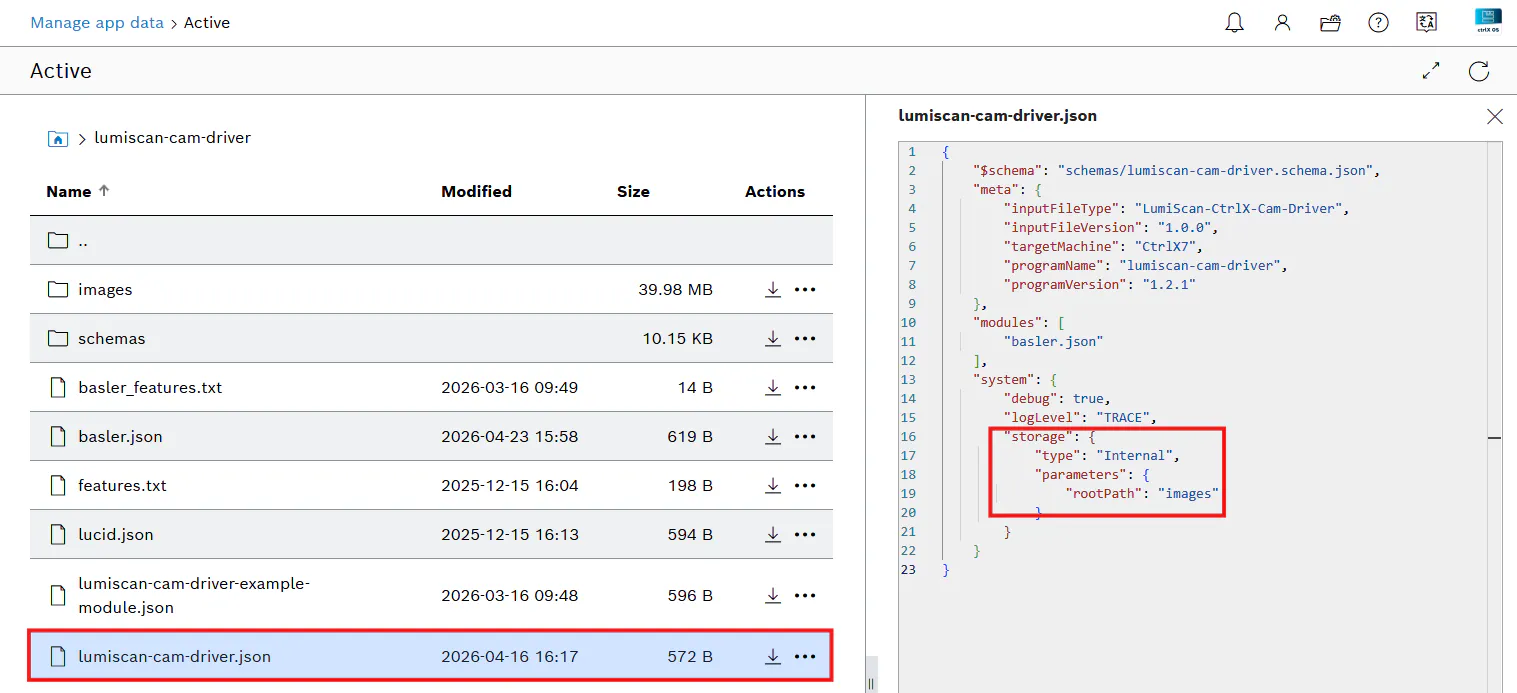
Example configuration:
“storage”: {
  "type": "Internal",
  "parameters": {
    "remotePath": "images"
  }
}
After changes:
- Save configuration
- Restart application
Trigger saving via:
/control/save
Result
After completing this guide:
- The camera is successfully connected to ctrlX CORE
- The LumiScan CamDriver is correctly configured
- The camera is accessible via the ctrlX Data Layer
- Image acquisition can be triggered programmatically
- Captured images can be stored locally or on external systems
The Company
HD Vision Systems is a leading provider of industrial image processing and AI-based automation solutions. Our hardware-agnostic platform enables seamless integration across a wide range of cameras, sensors, robots, and industrial systems, giving customers maximum flexibility and future-proof scalability. By combining advanced machine vision software with strong partnerships across the automation ecosystem, we deliver tailored, high-performance solutions for quality inspection, process optimization, and intelligent manufacturing. Together with our technology partners, we help companies accelerate digital transformation and unlock the full potential of Industry 4.0.